Setting Up and Troubleshooting a Printer on a Wireless Network
Wireless connectivity allows compatible printers to communicate with computers and other devices over a network without requiring a direct cable connection. However, setting up a printer for wireless communication can sometimes require additional configuration.
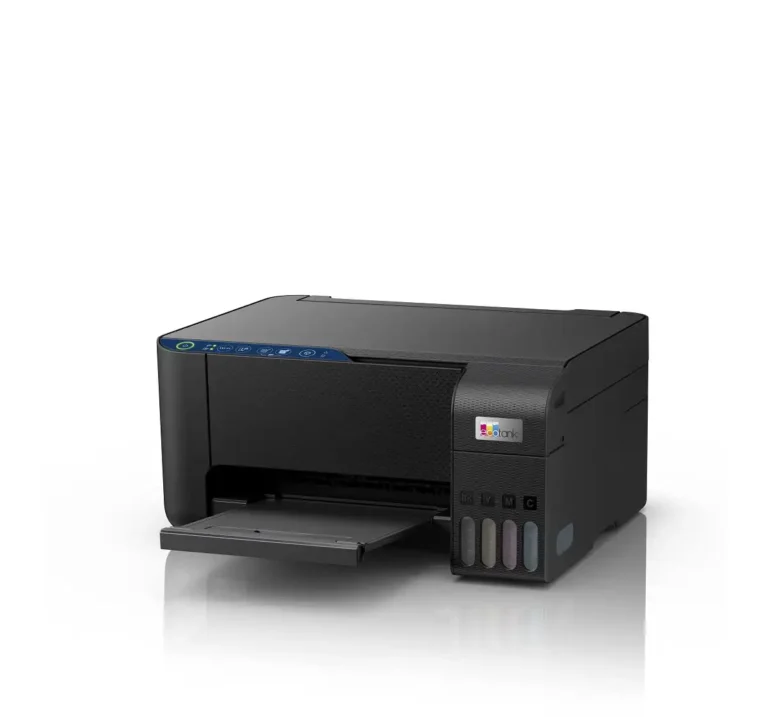
Before beginning, confirm that your printer supports wireless connectivity. Not all printer models include built-in wireless functionality.
Requirements
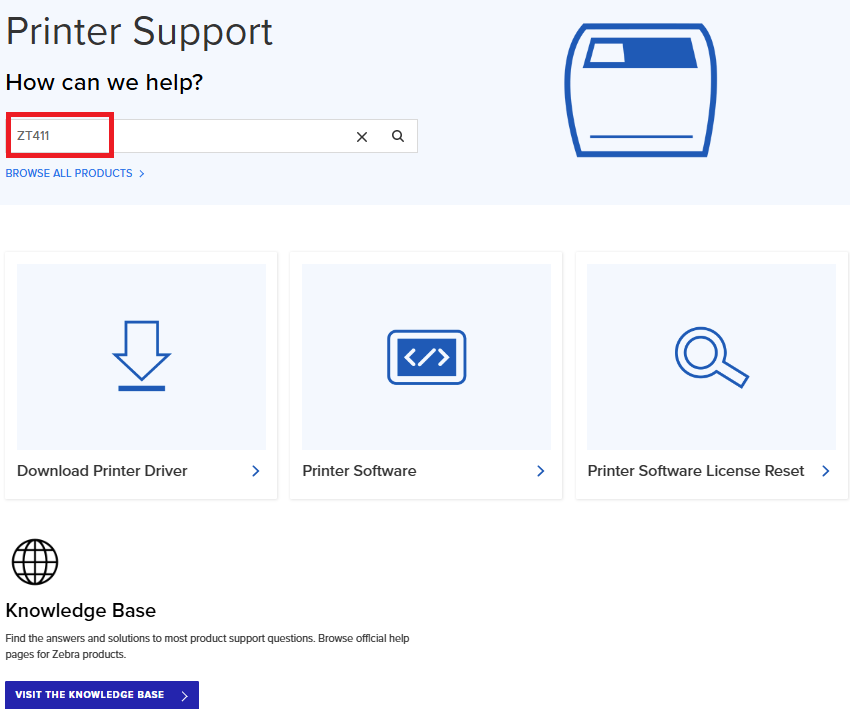
You may need a printer configuration utility, the appropriate printer driver, and access to the printer’s network settings.
Depending on the printer model, wireless settings can typically be configured using:
- The manufacturer’s printer setup utility
- A network management or configuration tool
- The printer’s built-in web interface
Always use the latest available version of the printer’s configuration software, drivers, and firmware to help ensure compatibility and proper operation.
If you are connecting the printer to a computer using USB during setup, make sure the appropriate printer driver is installed first.
Configure the Wireless Settings
Before configuring the printer, make sure you know the wireless network details, including the network name (SSID) and security credentials.
- Connect the printer to the computer using a supported local connection, such as USB, or use a wired Ethernet connection if supported.
- Open the printer’s configuration utility.
- Locate the wireless or network configuration settings.
- Enter the required wireless network information, including the SSID and security settings.
- Save or apply the configuration.
- Power cycle the printer or reset its network connection so the new settings take effect.
Important: Wireless settings may not become active until the printer has been restarted or its network connection has been reset.
Check Whether the Printer Is Connected to the Network
After applying the wireless settings, verify that the printer has successfully connected to the network.
You can usually check the printer’s network information by printing a network configuration page or viewing the network settings through the printer’s control panel.
If the printer has been assigned an IP address, try accessing its network interface through a web browser or use a network test such as a ping to verify communication.
If the printer responds successfully, it is connected to the network and should be available to compatible computers and devices.
Troubleshooting Wireless Connection Problems
If the printer does not connect to the wireless network, check the following:
Update the Printer Firmware
Make sure the printer is running the latest compatible firmware. Firmware updates can resolve known connectivity problems and improve compatibility with newer network environments.
Update the Configuration Software
Check that the printer configuration utility you are using is up to date. An outdated utility may not correctly support newer firmware or wireless settings.
Verify the Wireless Settings
Make sure the wireless settings saved on the printer match the network you are trying to connect to.
Pay particular attention to the SSID, security mode, and wireless password. Network names and other settings may be case-sensitive, so even a small difference can prevent the printer from connecting.
Print a Network Configuration Page
Print the printer’s network configuration information and compare it with your wireless network settings. This can help identify incorrect or missing configuration details.
Check Wired and Wireless Network Settings
Some printers support both wired and wireless network connections. If both options are available, check which connection is configured as the primary network connection.
An incorrect primary network setting can prevent the printer from communicating through the connection you are trying to use.
Reset the Network Settings
If the printer still will not connect, consider resetting its network settings to their defaults and configuring the wireless connection again from the beginning.
After resetting the network settings, re-enter the correct wireless information, save the configuration, and restart the printer.
Final Checks
Once the wireless configuration is complete:
- Restart the printer.
- Confirm that it has received an IP address.
- Verify that the printer and computer are connected to the same network.
- Test communication with the printer.
- Send a test print to confirm that the connection is working correctly.
If the printer still cannot connect after these steps, the problem may be related to the wireless network, security configuration, firmware, or compatibility between the printer and network.