Printer Printing Blank Pages: Causes and Solutions
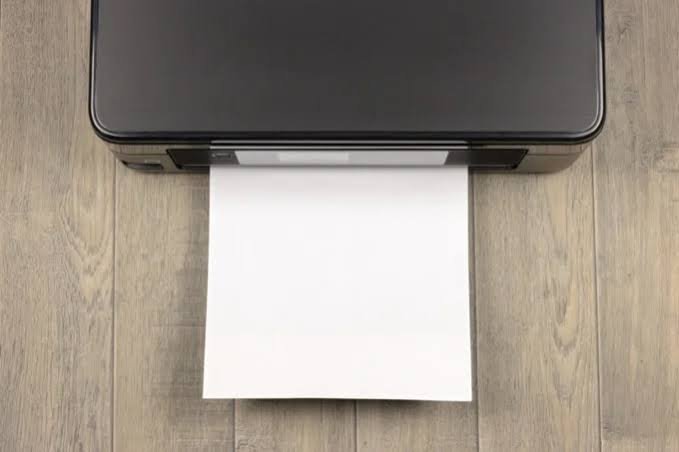
A printer that feeds paper normally but produces blank pages can be frustrating, especially when you need an important document quickly. In many cases, the problem is caused by low ink or toner, blocked printheads, incorrect settings, or a software issue rather than a major hardware failure.
Here are some simple troubleshooting steps you can try.
Check the Ink or Toner
Start by checking the ink or toner levels. A cartridge may appear to be installed correctly but could be empty or nearly empty.
- Check the ink or toner level through the printer control panel or computer.
- Make sure each cartridge is installed correctly.
- Replace empty cartridges with compatible ones.
- If you recently installed a new cartridge, make sure all protective packaging or seals have been removed.
Run a Printhead Cleaning
For inkjet printers, blocked or dried printheads can prevent ink from reaching the paper.
Open the printer’s maintenance settings and run a Printhead Cleaning or Nozzle Cleaning cycle. You may need to run the process more than once, but avoid performing excessive cleaning cycles because they can consume a significant amount of ink.
After cleaning, print a nozzle or test page to check the results.
Check Your Print Settings
Incorrect print settings can sometimes cause unexpected output.
Before printing, check that:
- The correct printer is selected.
- The document contains visible text or images.
- The correct paper type is selected.
- Colour or grayscale settings are configured correctly.
- The printer is not set to a special mode that could affect output.
Restart the Printer
Turn off the printer and unplug it from the power source. Wait for around 10 seconds, reconnect it, and allow it to fully restart before printing another test page.
You can also restart the computer to clear temporary printing or driver issues.
Update or Reinstall the Printer Driver
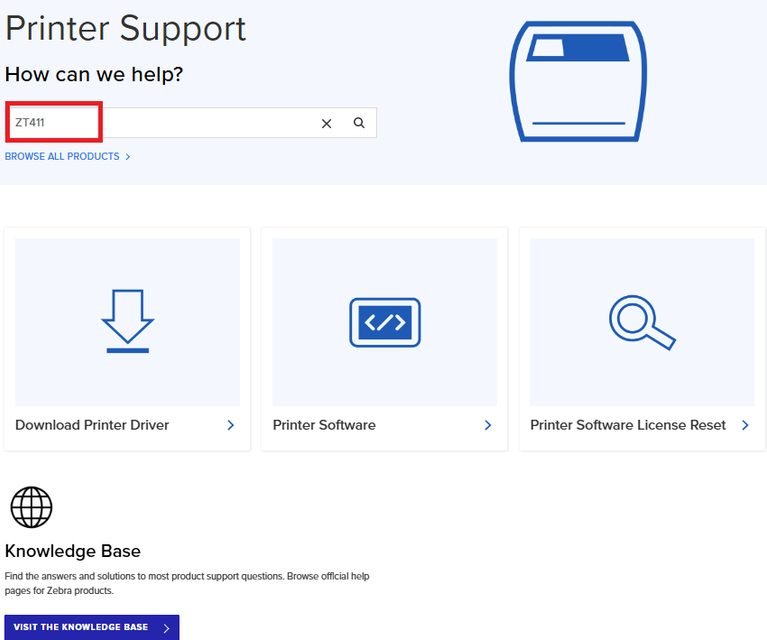
If the printer still produces blank pages, the driver may be outdated or corrupted. Check for the latest compatible driver and install it on your computer.
If updating does not resolve the issue, removing and reinstalling the printer can help establish a fresh connection.
When to Seek Professional Help
If the printer continues producing completely blank pages after checking the cartridges, cleaning the printhead, reviewing the settings, and reinstalling the driver, there may be an internal hardware problem.
A qualified technician can inspect the printer and determine whether the issue is related to the printhead, cartridge system, internal electronics, or another component.