Printer Says “Paper Jam” but There Is No Paper Jam
Seeing a “Paper Jam” message when there is no visible paper stuck inside the printer is a common problem. The printer may detect an obstruction because of a small piece of torn paper, a sensor issue, or paper that has not been loaded correctly.
Try these troubleshooting steps before calling for professional assistance.
Turn Off and Unplug the Printer
First, cancel any active print jobs and turn off the printer. Unplug it from the power source and wait approximately 10 seconds.
This allows the printer to reset before you inspect it for any remaining paper.
Check the Paper Path
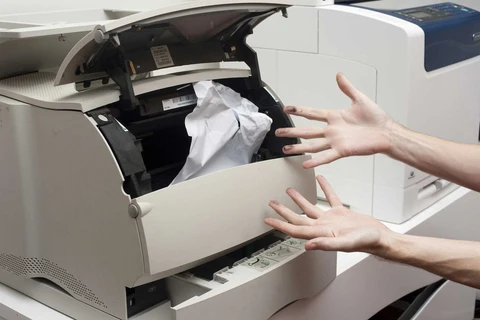
Open all accessible covers and carefully inspect the paper path.
Look for:
- Torn pieces of paper
- Small scraps hidden inside the printer
- Folded or curled sheets
- Paper stuck around the rollers
- Foreign objects blocking the paper path
Remove any paper carefully to avoid damaging the rollers or other internal components.
Check the Paper Tray
Incorrectly loaded paper can also trigger a paper jam warning.
Make sure the paper:
- Is loaded neatly in the tray.
- Matches the selected paper size.
- Is not damaged, damp, or excessively curled.
- Is below the tray’s maximum paper limit.
- Is properly aligned with the paper guides.
Avoid overfilling the tray, as this can prevent sheets from feeding correctly.
Inspect the Rollers
Paper-feed rollers can collect dust and paper debris over time. Dirty or worn rollers may cause the printer to incorrectly detect a jam or fail to feed paper properly.
If the printer’s maintenance instructions allow it, gently clean accessible rollers using an appropriate method recommended for the printer.
Check for a Stuck Sensor
Printers use sensors to detect whether paper is moving through the machine. A sensor can sometimes remain activated after a previous paper jam has been cleared.
If the printer continues displaying the paper jam message even though the paper path is clear, turn the printer off, restart it, and check whether the error disappears.
Clear the Print Queue
A previous failed print job can sometimes contribute to continued printing problems.
Open the printer queue on your computer and cancel any pending documents. Once the queue is clear, restart the printer and send a small test document.
When to Contact a Technician
If the paper jam warning continues after you have completely checked the paper path and restarted the printer, the issue may involve a damaged roller, sensor, or another internal component.
At this point, professional servicing may be required to identify and repair the underlying problem without causing further damage to the printer.